Pro-version additional modules
To activate additional modules, you need to go to the PRO tab, check the box next to the desired additional module and then click the «Request new address» button.
- PRO-version activation
- AutoTrading Extension
- "Chart Loading" Extension
- "TradingView WebHook" Extension
- "Moon Streamer" Extension
- "BackTest" Extension
- MoonBonus
"TradingView WebHook" Extension
What are webhooks?
Webhooks allow you to send a POST request to a specified URL each time an alert you set in TradingView is triggered. This feature can be enabled when creating or editing an alert in TradingView. Enter the correct URL obtained from Settings → AutoBuy in the Moonbot terminal, and when the alert is triggered, your execution command will be instantly sent to Moonbot.
This functionality can be activated in the Moon Credits window for 100 Moon Credits.
Configuring Windows Firewall on a computer/server
To receive commands from TradingView, you need to create a rule with a whitelist of IP addresses in Windows Firewall. To do this, follow these steps:
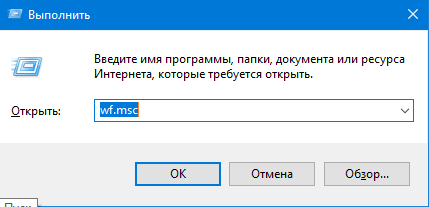
1. In the Run window (or press Win+R), enter wf.msc and click OK:
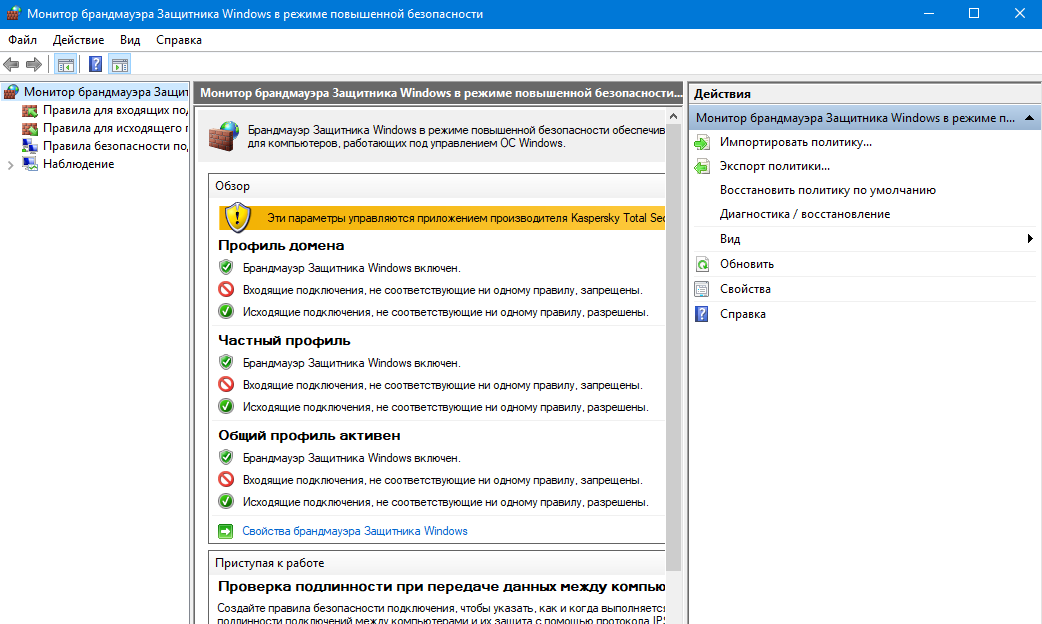
The Windows Firewall with Advanced Security configuration window will open. This window can also be opened via Control Panel → System and Security → Windows Firewall by clicking Advanced settings:
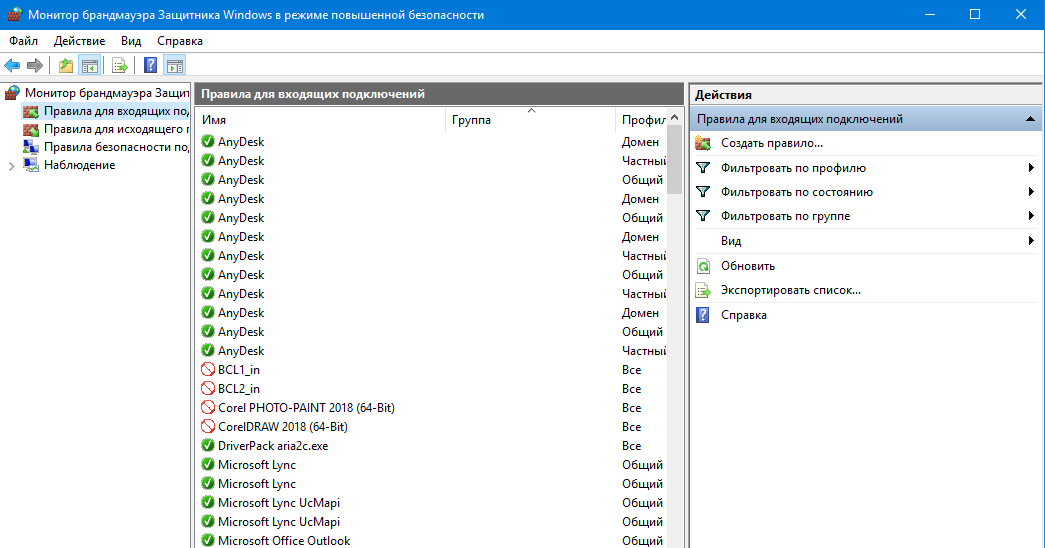
2. In the left panel, select Inbound Rules; to add a traffic processing rule, select New Rule… in the right panel:
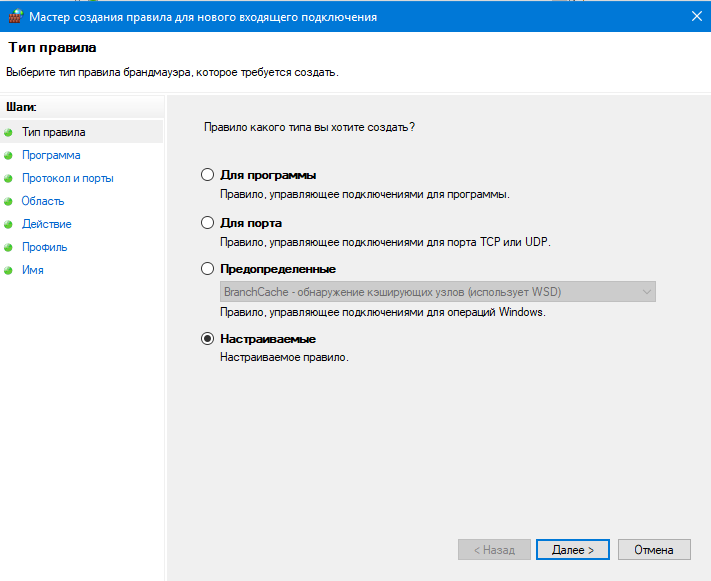
3. The New Inbound Rule Wizard window will open. Select the rule type — Custom, and proceed to the next step by clicking Next:
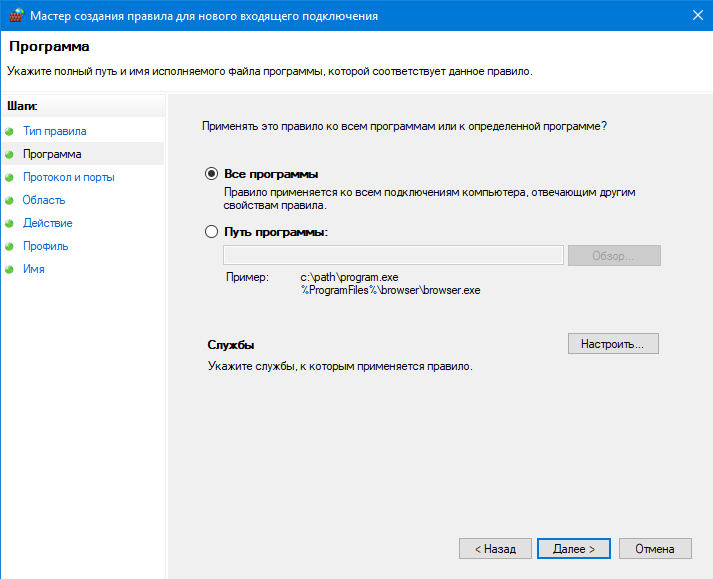
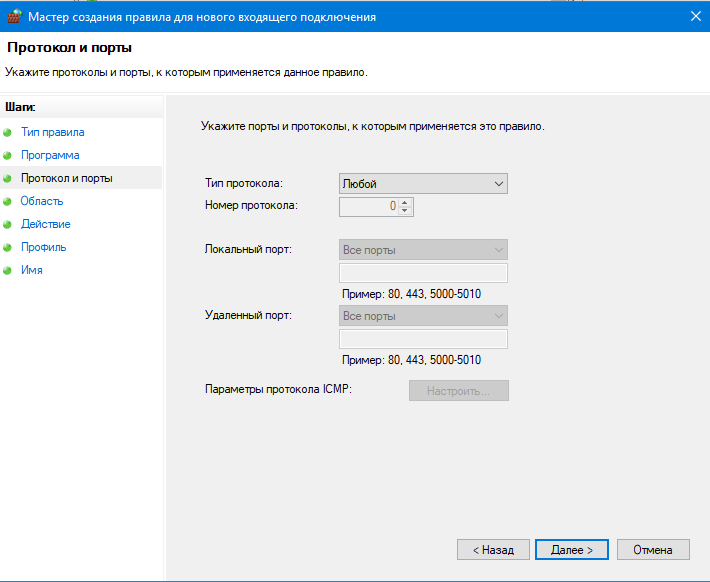
4. In the Program and Protocol and Ports sections, keep the default settings:
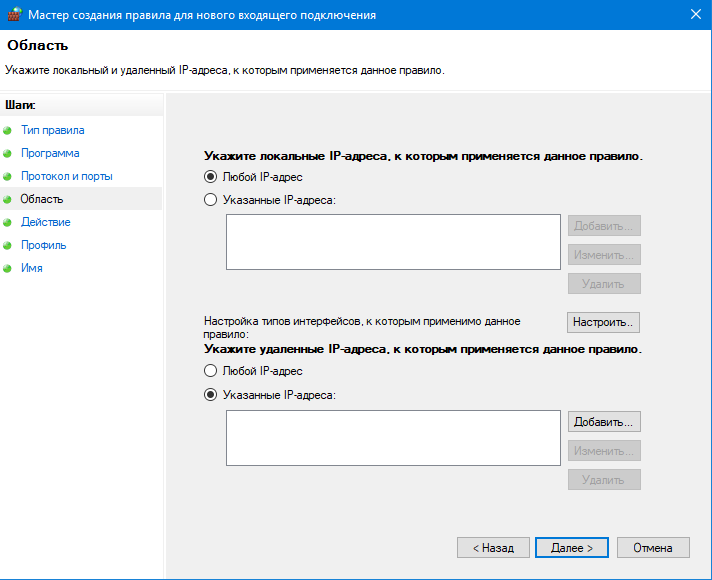
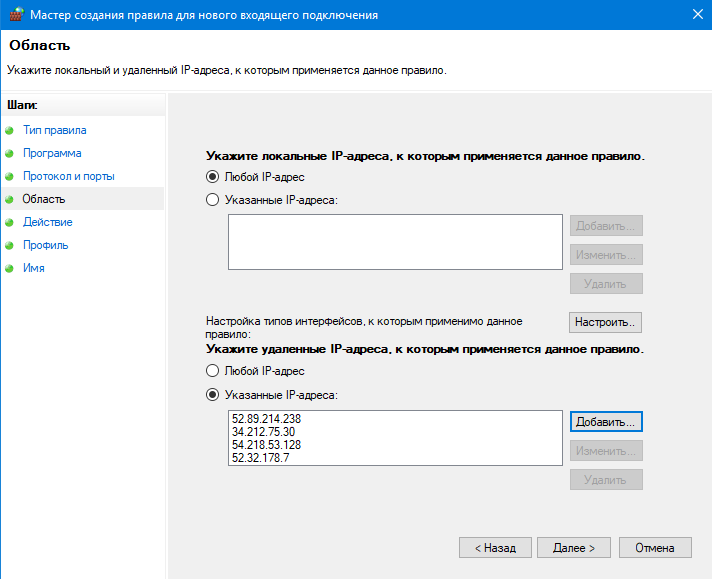
In the Scope section, select These IP addresses for remote IP addresses and click Add:
5. In the window that opens, enter the remote subnet IP address and click OK:
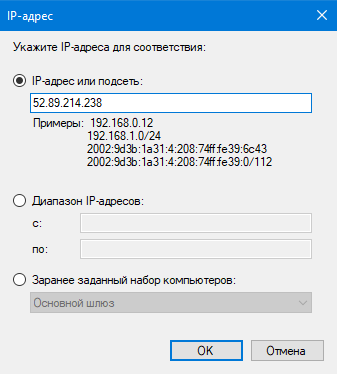
Add all the IP addresses listed below one by one:
52.89.214.238
34.212.75.30
54.218.53.128
52.32.178.7
After entering the required values, click Next.
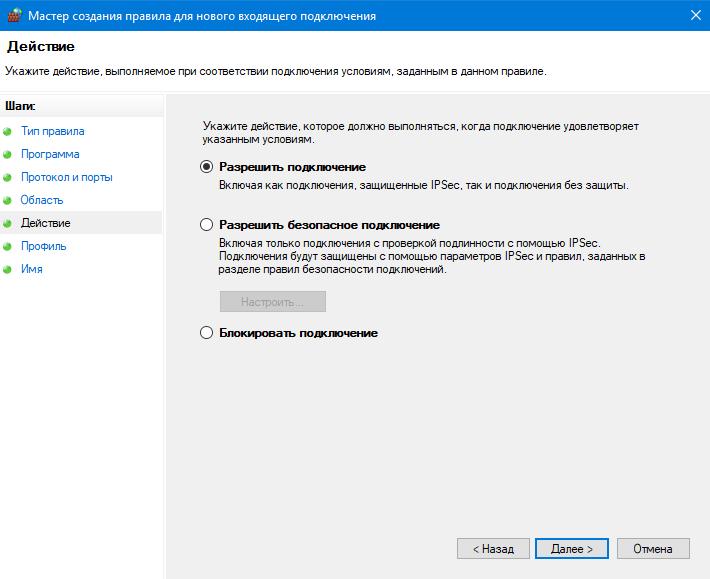
6. In the Action section, keep the default option Allow the connection and click Next:
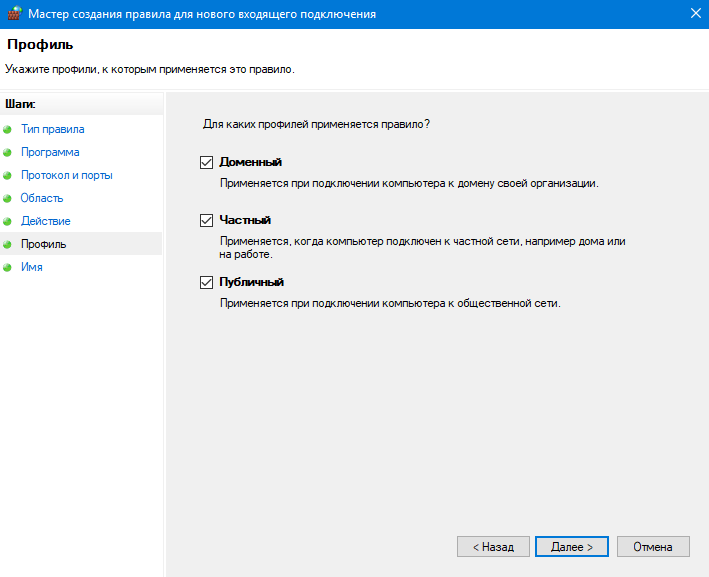
7. The Profile section allows you to choose the profile; leave all checkboxes selected and click Next:
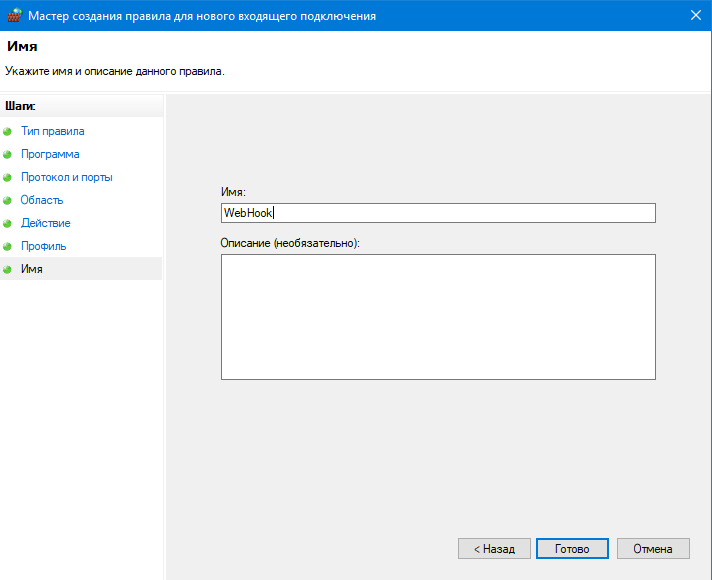
8. In the final step, enter a name for the rule in the Name field and optionally add a description in the Description field. Complete the rule creation wizard by clicking Finish:
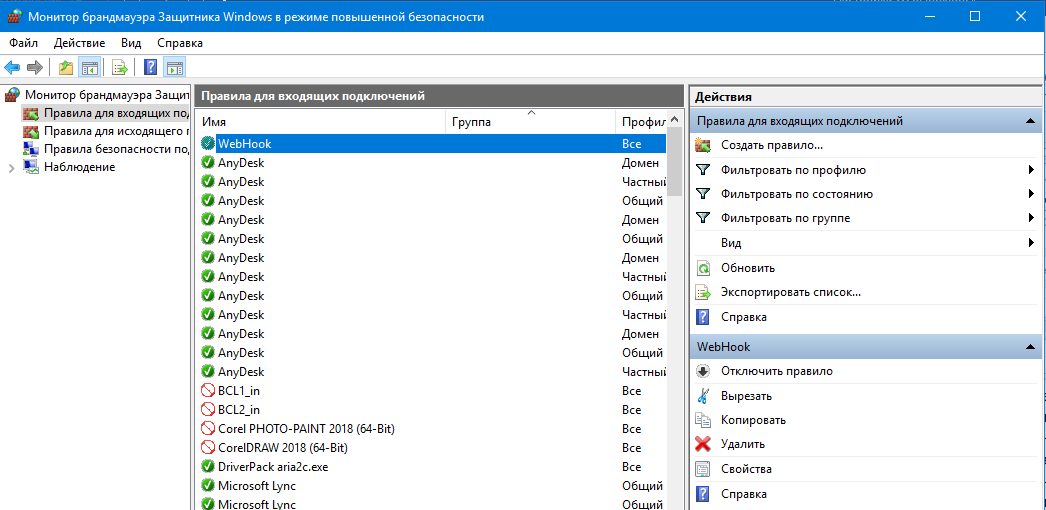
9. Make sure that the created rule now appears in the Inbound Rules window:
Configuring Moonbot to receive WebHook commands
To receive WebHook commands, perform the following steps in the Moonbot terminal:
1) In Settings → AutoBuy, enable the Detect by WebHook checkbox:
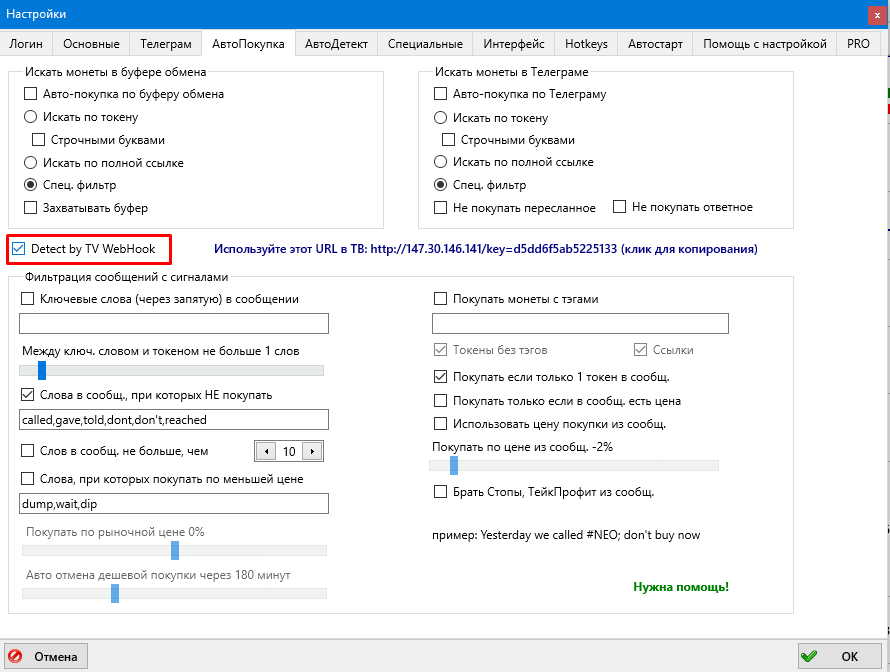
To the right of Detect by WebHook, the URL is displayed — this URL must be used when configuring alerts in TradingView.
2) Configure the following parameters so the terminal can parse tokens in messages:
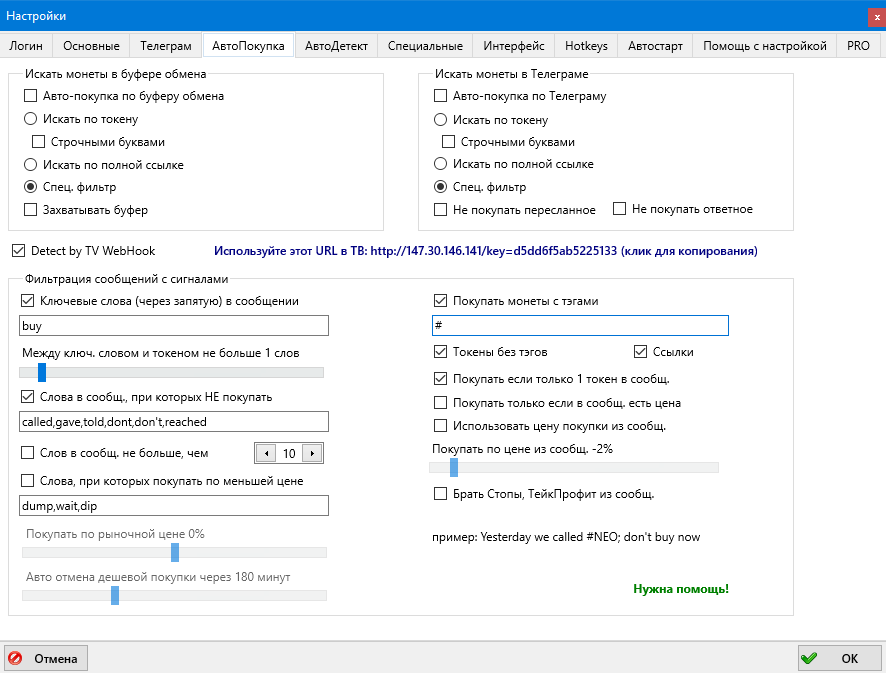
a. Enable the Special filter checkbox;
b. Optionally enable the Keywords checkbox if you want to use it as a filter;
c. Enable the Buy coins with tags checkbox
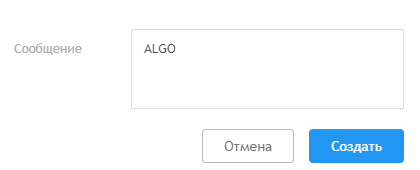
The Buy coins with tags checkbox is required to buy from messages where the token is specified in the format ***BTC — for this, you need to add the symbol # before the token, for example: #ALGOBTC. Without this checkbox, the terminal can execute a buy if the message contains only the token, for example: ALGO.
d. The remaining parameters are described on the website in the section Settings → AutoBuy, you can configure them as needed.
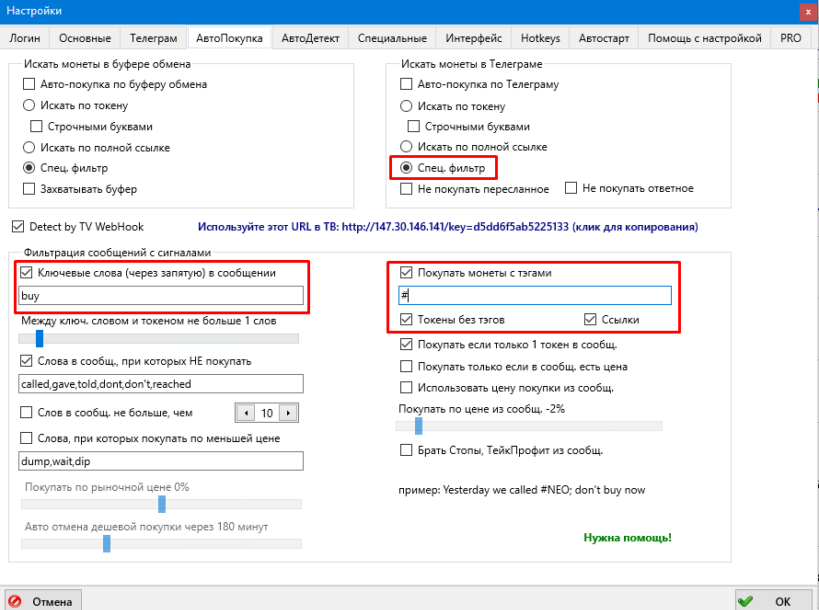
Below are several examples of messages and corresponding settings.
Case 1 - using keywords and a tag:
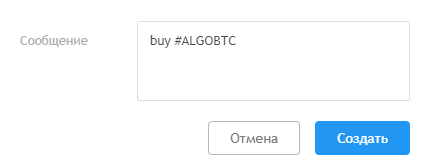
Case 2 - without keywords and a tag:
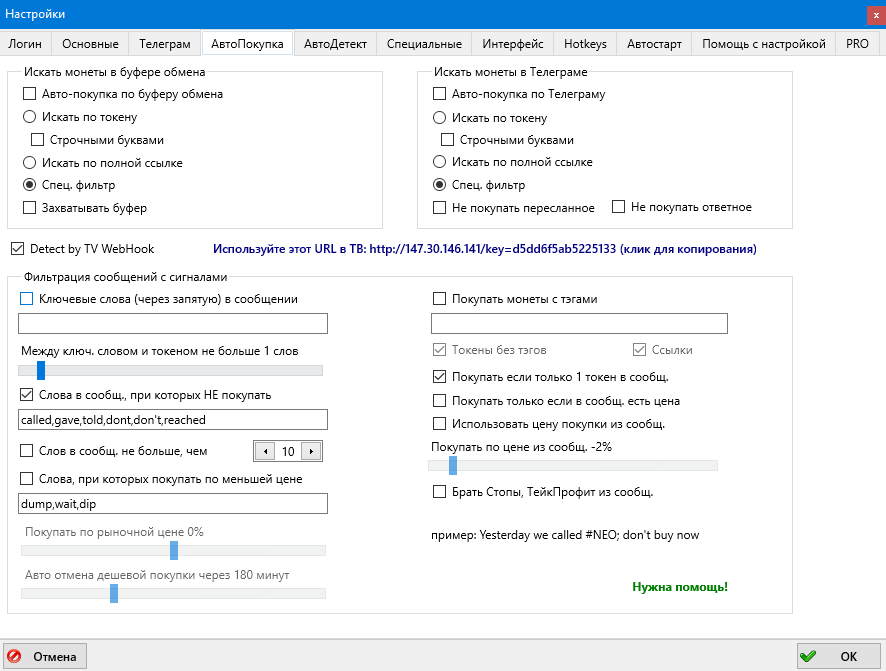
There can be many variations of messages and settings; the examples above are provided only for illustration and better understanding. You can configure the settings that are most suitable and convenient for you.
Note that the terminal will not execute a buy for messages with a token in the format “ALGOBTC”: you must either remove “BTC” or add the # tag, as described above.
3) Configure a Telegram strategy as for working with regular signals in Telegram via standard messages, or in the Main tab of the strategy enable the AcceptCommands parameter to receive trust management commands in messages.
Below is an example of a strategy that you can create yourself by selecting SignalType: Telegram and ChannelName: WebHookTV:
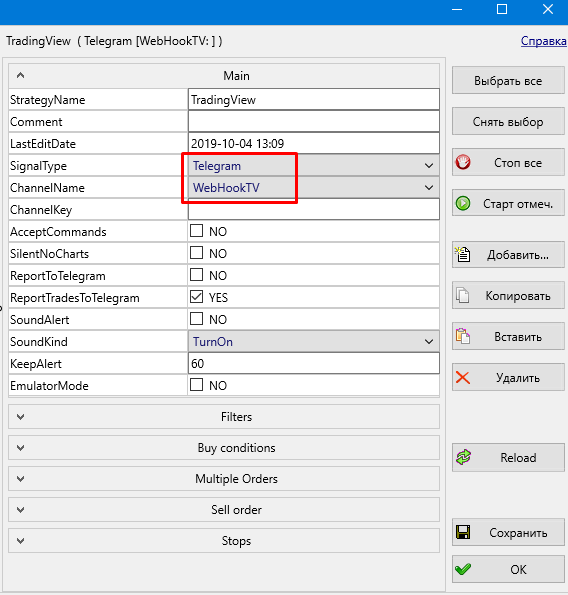
Or copy and paste it into the terminal, then configure all required parameters:
##Begin_Strategy
Active=-1
StrategyName=TradingView
Comment=
LastEditDate=2019-10-06 16:28
SignalType=Telegram
ChannelName=WebHookTV
ChannelKey=
AcceptCommands=NO
SilentNoCharts=NO
ReportToTelegram=NO
ReportTradesToTelegram=YES
SoundAlert=NO
SoundKind=TurnOn
KeepAlert=60
EmulatorMode=NO
CoinsWhiteList=
CoinsBlackList=
MinVolume=0
MaxVolume=10000k
MinHourlyVolume=0
MaxHourlyVolume=1000k
PenaltyTime=300
Delta_3h_Min=0
Delta_3h_Max=100.00
Delta_24h_Min=0
Delta_24h_Max=100.00
Delta2_Type=1h
Delta2_Min=0
Delta2_Max=100.00
Delta_BTC_Min=-5.00000000
Delta_BTC_Max=5.000
Delta_BTC_24_Min=-10.00000000
Delta_BTC_24_Max=10.000
Delta_BTC_5m_Min=0
Delta_BTC_5m_Max=10.000
Delta_Market_Min=-5.00000000
Delta_Market_Max=10.000
Delta_Market_24_Min=-10.00000000
Delta_Market_24_Max=10.000
UseBV_SV_Filter=NO
BV_SV_FilterRatio=1.0000
NextDetectPenalty=30
GlobalFilterPenalty=0
MoonIntRiskLevel=2
MoonIntStopLevel=4
DeltaSwitch=0
PriceStepMin=0
PriceStepMax=10.000
AutoBuy=YES
MaxActiveOrders=10
MaxOrdersPerMarket=1
AutoCancelBuy=20
AutoCancelLowerBuy=11k
BuyType=Buy
OrderSize=0.001000
buyPrice=-1.00000000
Use30SecOldASK=YES
TlgUseBuyDipWords=NO
TlgBuyDipPrice=0
OrdersCount=1
BuyPriceStep=-1.50000000
OrderSizeStep=25.00
CancelBuyStep=0
JoinSellKey=0
SellPrice=4.000
PriceDownTimer=0
PriceDownDelay=10
PriceDownPercent=0.2000
PriceDownRelative=NO
PriceDownAllowedDrop=0.1000
UseScalpingMode=NO
UseSignalStops=NO
UseStopLoss=NO
StopLossEMA=0
StopLossDelay=0
StopLoss=-3.00000000
StopLossSpread=0.4000
AllowedDrop=-15.00000000
UseSecondStop=NO
TimeToSwitch2Stop=60
PriceToSwitch2Stop=0
SecondStopLoss=-3.00000000
UseStopLoss3=NO
TimeToSwitchStop3=60
PriceToSwitchStop3=-10.00000000
StopLoss3=-2.00000000
AllowedDrop3=-14.00000000
UseTrailing=NO
TrailingPercent=-1.00000000
TrailingSpread=0.1000
TrailingEMA=0
UseTakeProfit=NO
TakeProfit=1.0000
UseBV_SV_Stop=NO
BV_SV_Kind=TradesCount
BV_SV_TradesN=100
BV_SV_Ratio=0.7500
BV_SV_TakeProfit=-1.00000000
##End_Strategy#
Configuring Alerts in TradingView
When creating alerts in the Actions section, enable the Webhook URL checkbox and paste the URL copied from the Moonbot terminal in Settings → AutoBuy into the field below, and also specify the required message format in the Message field:
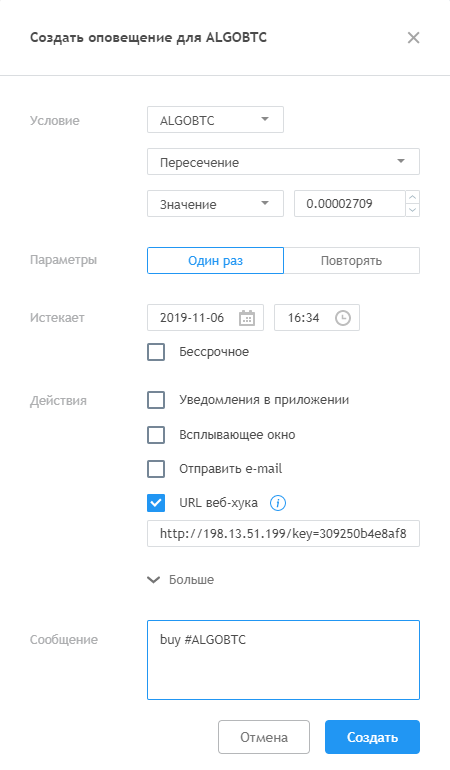
You can include Trust Management commands in messages, which provide more advanced order management capabilities. To use them, enable the AcceptCommands = YES parameter in the Main tab of the strategy.
For more details about command types, see Trust Management Via Telegram.
Troubleshooting alerts not triggering
Check whether the following message appears in the Moonbot terminal log when an alert is received:
WebHook signal: buy #ALGOLBTC Key:
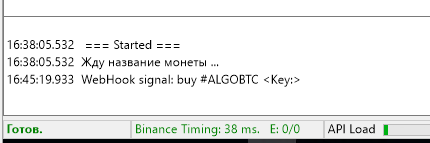
If this message is not present in the log, then:
-
Check the correctness of the IP address rule configuration in Windows Firewall;
-
Check whether the Detect by WebHook checkbox is enabled in Settings → AutoBuy in the terminal;
-
Verify the correctness of the Webhook URL used in TradingView, copied from Settings → AutoBuy in the terminal.
If this message is present in the log, then:
-
Check the correctness of the strategy configuration in the terminal;
-
Check whether the strategy is enabled and whether auto-detection is active (AutoDetect: ON);
-
Check the settings in the terminal under Settings → AutoBuy;
-
Verify the correctness of the message in TradingView.