Pro-version additional modules
To activate additional modules, you need to go to the PRO tab, check the box next to the desired additional module and then click the «Request new address» button.
- PRO-version activation
- AutoTrading Extension
- "Chart Loading" Extension
- "TradingView WebHook" Extension
- "Moon Streamer" Extension
- "BackTest" Extension
- MoonBonus
"BackTest" Extension
The BackTest module is designed for testing automated trading and practicing manual trading skills using historical trade data from various exchanges. This module is available only in the PRO version of the Moonbot terminal and is activated using Moon Credits.
⚠️ Attention!
In scalping, there is no repeatability of results when replaying the same historical market data. A detailed explanation is provided at the end of this guide.
In short: just as two identical Moonbot terminals with the same strategies running on different VDS will not trade exactly the same on the live market, likewise two BackTest runs with the same strategy will not produce identical results.
BackTest in scalping, and especially in the Moonbot terminal, is used not for exact result reproduction, but for analyzing the overall behavior of strategies under different market conditions and for their further optimization.
BackTest Window Overview
The BackTest window in the Moonbot terminal is opened via Menu → BackTest and looks as follows (using Binance Futures Daily and Gate Spot Monthly archives as an example).
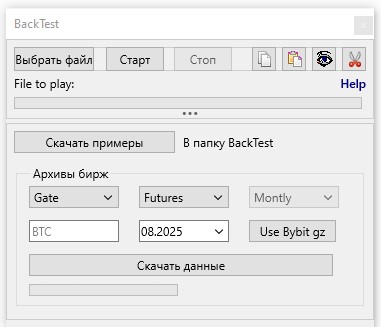
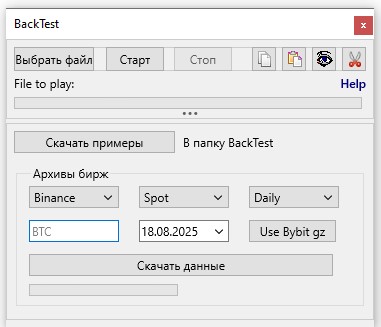
The BackTest window consists of two main control areas: Upper area and Lower area.
Upper area — BackTest process control
This area contains elements required to start and manage playback of .bin files: Select File, Start, Stop, Copy File, Paste File, Eye (chart preview), Scissors (data trimming), and the .bin file playback progress bar.
Clicking the Help label will open this guide on the website with a detailed description of how BackTest works.
Lower area — loading and managing .bin archives
Used for downloading sample .bin files and loading historical data from various exchanges; it includes two sections:
a) Download Samples section
contains a single button that allows you to download demo BackTest files
b) Exchange Archives section allows you to select and download real historical trade archives; includes an exchange selection menu, Spot or Futures selection, a menu for choosing daily (Daily) or monthly (Monthly) archives, a field for selecting a coin, a menu for selecting a specific date or month, Use Bybit gz buttons for working with Bybit archive data, and Download Data buttons with a download progress bar.
After clicking the Download Data button, the following messages will appear to the right of the download progress bar:
-
Recvd 1 / 183 Mb ... Recvd 183 / 183 Mb (archive download progress)
-
unpack data.. (archive unpacking)
-
Parsing 01.07.2025...Parsing 31.07.2025 (data parsing by days)
-
Not Found (no archive data available for download) — this message appears if an incorrect coin name or a date without available archive data on the exchange is specified.
After all operations are successfully completed, the message Done will appear.
The lower area of the BackTest window can be hidden by clicking the “...” (ellipsis) button in light themes or the Hide button in dark themes.
Methods of Obtaining Historical Data
BackTest is performed by replaying files with historical trade data. These files have the .bin extension. They can be obtained in several ways:
- Downloading pre-prepared examples:
- Downloading daily or monthly archives from the BackTest window;
- Using ready-made .bin files from Moonbot logs.
Downloading pre-prepared examples
Click the Download Samples button to load ready-made examples of volatile chart segments (files .bin) from our server. They will be saved in the BackTest folder, which is automatically created in the Moonbot root directory.
Currently, the following examples are available for download:
-
Demo_BANANAS31 09-07-2025 10-18.bin
-
Demo_GMX 09-08-2025 23-14.bin
-
Demo_GMX 10-08-2025 06-33.bin
-
Demo_HAEDAL 21-05-2025 17-04.bin
-
Demo_LA 11-08-2025 00-39.bin
-
Demo_LAYER 10-08-2025 05-39.bin
-
Demo_REQ_05-21-04-23-57.bin
-
Demo_TREE_07-29-17-16-05.bin.
Downloading Daily or Monthly Archives from the BackTest Window
In the lower part of the BackTest window, you can download .bin files with historical data from various exchanges. To do this:
-
select an exchange;
-
specify the market (Spot or Futures);
-
select the period: Daily or Monthly;
-
enter the coin;
-
specify the date or month;
-
click Download Data.
Downloaded historical data files are saved in the BackTest folder, in a subfolder named in the format COIN-YYYY-MM (for example, LTC-2025-07).
Available ranges of historical data:
-
Binance Spot — starting from 17.08.2017 (first available file Binance_BTC_spot 17-08-2017.bin);
-
Binance Futures — starting from 01.01.2020 (first available file Binance_BTC_futures 01-01-2020.bin);
-
Gate Spot — starting from 01.01.2018 (first available file Gate_BTC_spot 01-01-2018.bin);
-
Gate Futures — starting from 18.11.2019 (first available file Gate_BTC_futures 18-11-2019.bin).
To work with Bybit archive data, you need to manually download an archive from the exchange website 🔗 https://public.bybit.com/ to your computer, for example ETHUSDT2026-02-07.csv.gz. Then, in the BackTest window, click the Use Bybit gz button, specify the path to this archive on your computer, and click Open. After that, a folder will be created in the BackTest directory with the coin name, year, and month, for example ETH-2026-02, containing .bin files such as Bybit_ETH_spot 07-02-2026.bin. You can then open this file in the BackTest window and replay it on the chart of that coin.
Using ready-made .bin files from Moonbot logs
Historical data can also be obtained:
a) from the Logs folder — the terminal stores trade history there, which is used for display in the Reports table.
b) from the Logs\ImportantB and BackTest\Important folders — .bin files of significant trades are automatically saved there if you click on a trade row in the reports and enable the Important checkbox.
Previously, such files were used only for viewing a trade in the static Pump Chart, but now they can be fully replayed via BackTest.P
layback of a .bin file will take exactly the same amount of time as its duration on the chart from the report if you open a .bin file from the Logs folder, or exactly 24 hours if you open a downloaded .bin file from exchange archives.
Processing .bin files
Cutting fragments from long .bin files
To quickly test a strategy on a specific chart segment, you can extract only the required fragment. To do this:
-
Click the Eye button, select a .bin file — it will open in static mode in the Pump Chart window;
-
In the BackTest window, click the Scissors button;
-
Hold Ctrl and press the left mouse button on the chart — select the beginning of the fragment;
-
Without releasing the left mouse button, drag to the end of the fragment (the selected area will be highlighted in green);
-
Release the button — Moonbot will prompt you to save this segment as a separate .bin file in the BackTest folder.
⚠️ Attention!
If there is a long “empty” area without trade markers before the volatile segment on the chart, it will also be included in the resulting file. On sparse charts, try to capture the first trade marker of the desired segment.
The Scissors button can be used to cut fragments both on charts in the main window and in Chart windows, but only while they are displayed as trade markers (crosses).
When the chart switches to mini-candles, recording .bin files is no longer possible.
If you try to replay such a “candle” file in BackTest, instead of the file name the message Nothing to play! will appear.
Merging multiple .bin files into one using the BackTest window
If you have several fragments of historical data for the same coin — for example, files BTC1.bin and BTC2.bin recorded at different times — they can be merged into a single .bin file. This is useful when you want to test a strategy on a long market sequence assembled from multiple segments.
To merge the files, follow these steps:
-
Click the Select File button and choose the first fragment — BTC1.bin;
-
Click Start to replay the first fragment on the chart;
-
Click Select File again and choose the second fragment — BTC2.bin;
-
Click Start to replay the second fragment immediately after the first one.
-
After replaying both fragments, click Scissors, then:
-
hold Ctrl and left-click at the beginning of the first fragment;
-
without releasing the left mouse button, drag the selection area to the end of the second fragment;
-
the selected area will be highlighted with a green rectangle;
-
release the left mouse button to complete the selection.
-
After selecting the area on the chart, a confirmation window will appear in the terminal:
Warning
Boss, save the BTC chart fragment, interval from 14:58:37 to 15:03:06 (269 sec) to file BackTest*.bin?
Yes / No -
After confirmation, the file will be saved in the BackTest folder with a name in the format: Demo_BTC 23-08-2025 14-58.bin.
Explanation of the .bin file name:
-
Demo — prefix indicating that this is a demo file;
-
BTC — the coin for which the historical trade sequence was recorded;
-
23-08-2025 — date of the fragment (August 23, 2025);
-
14-58 — start time of the recording (14:58).
“Stitching” multiple chart fragments in the Pump Chart window using BackTest
“Stitching” multiple fragments is an undocumented feature of the Moonbot terminal that allows combining several .bin files of the same coin into a single continuous chart.
To perform “stitching”, with the BackTest window open, sequentially open via Menu → Trades History or the Eye button two or more .bin files with the same coin name. In this case, trades from the new file will be added to the chart of the previous file rather than replacing it.
It is important to select fragments without time gaps. For example, if your .bin files contain recordings of about 10 minutes each, it is optimal to stitch them with an overlap of 7–9 minutes to avoid gaps or overlaps.
💡 Please note: you cannot replay or stitch .bin files of different coins listed on the exchange. Each .bin file will be replayed only on the chart of its corresponding coin. Exception — .bin files of delisted coins (for example, Coin1Delist.bin and Coin2Delist.bin). They can be replayed and stitched on the ETH market, as delisted coins are always displayed on its chart.
After preparing the required .bin files, you can collapse the lower area of the BackTest window using the … or Hide button, leaving only the upper control panel for loading and replaying .bin files for further backtesting.
Starting the BackTest procedure
The BackTest procedure will be demonstrated using a demo file from the Moonbot collection.
-
Open the BackTest window In the main terminal window, select Menu → BackTest — the BackTest window will appear;
-
Download demo examples.
Click the Download Samples button — ready-made .bin files from the Moonbot collection will be downloaded to the BackTest folder; -
Select a file for playback
Click Select File, in the file explorer navigate to the BackTest folder, select a demo file, for example: Demo_LA 11-08-2025 00-39.bin, then click Ok. The selected file name will appear in the BackTest window; -
Prepare strategies and enable Emulator mode:
-
activate the strategies you want to test;
-
enable EMULATOR mode via Menu → Emulation Mode and make sure the AutoDetect: ON button is enabled.
-
Start BackTest
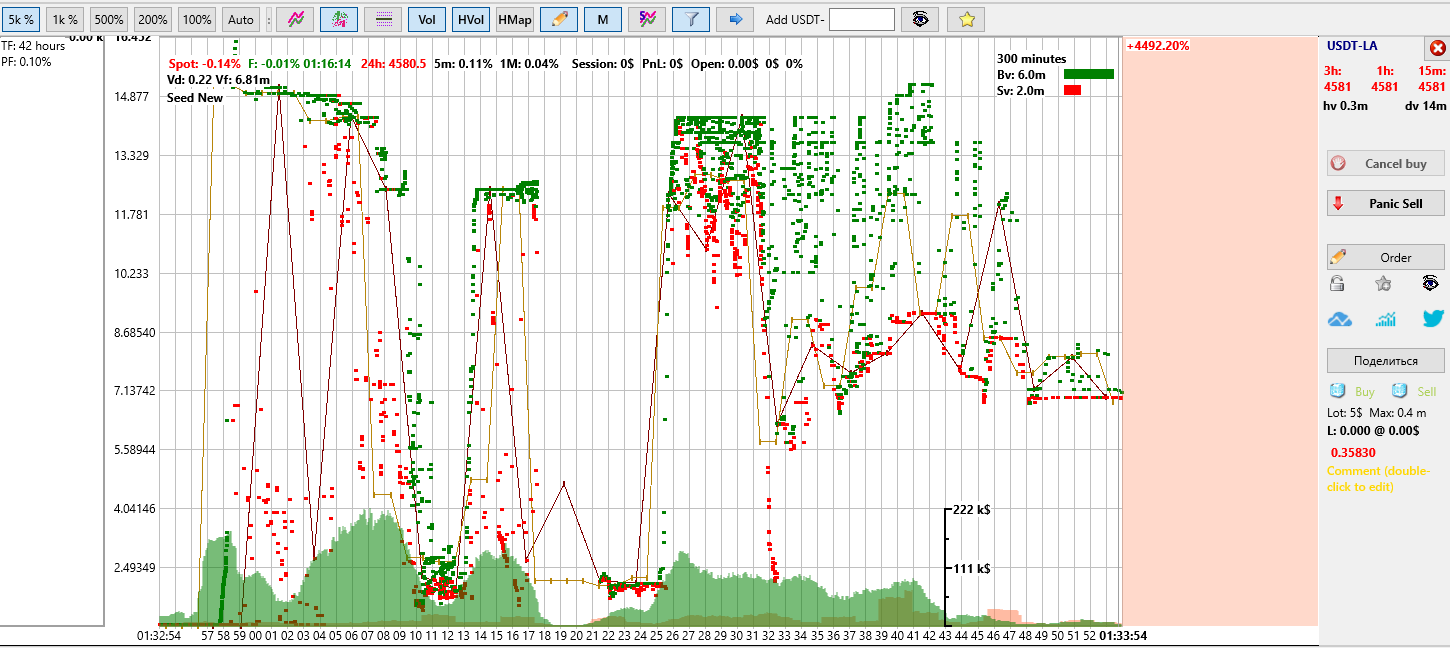
Click Start. Playback of historical trades from the selected file will begin, and the chart of the LA coin will open automatically. If this coin is no longer listed on the exchange, playback will always be performed on the ETH market; -
Monitor playback progress A progress bar for loading the .bin fragment is displayed under the file name;
-
Control playback:
-
click Stop to stop playback at any time;
-
clicking Start again will restart playback of the .bin file from the beginning.
⚠️ Attention! It is possible to replay multiple .bin files simultaneously. In this case, after clicking Select File, you can select multiple .bin files instead of one.
After clicking Start in the BackTest window, all selected files will start playing simultaneously on their respective coin charts. If the selected list contains .bin files of the same coin, the first file will be played on its native chart, the second on the ETH chart, and the third and subsequent ones on other available coin charts.
Analyzing results
During playback of a .bin file, all active strategies that pass the filters will be triggered.
After BackTest is completed:
-
Click Reports in the main Moonbot window;
-
Open the Reports table;
-
Evaluate the results of the tested strategies.
If necessary, adjust the strategy parameters and run the file again.
Repeat the testing cycle until you achieve the desired result.
Using the Copy File button, you can copy the loaded .bin file to the clipboard from the BackTest window.
Using the Paste File button, you can paste it into the BackTest window of another Moonbot terminal or into a Telegram group message to share the .bin file with others.
Emulator mode behavior when running BackTest
⚠️ Attention! If the global mode of the Moonbot terminal was not manually switched to EMULATOR mode before starting BackTest and remained in real mode, then after clicking Start in the BackTest window, the terminal will automatically activate protection and switch the global mode to EMULATOR. This prevents a situation where orders could be placed using a real balance during BackTest.
If during playback of a .bin file you attempt to manually switch the global mode from EMULATOR back to real mode, another protection mechanism will be triggered:
– the Stop button in the BackTest window will be pressed automatically,
– playback of the .bin file will stop,
– real trades will start being displayed on the coin chart.
In addition, when testing strategies using BackTest in the master Moonbot terminal, control commands to slave terminals via UDP are not sent. This is done intentionally to prevent false signals and avoid unintended command execution on slave terminals.
Why two runs of the same historical data may produce different results
In classic algorithms based on candles, everything is deterministic: the same input produces the same result. You can calculate “2+2” ten times and always get “4”. In scalping, this is not possible. Even with two identical data replays, profit, number of trades, and entry structure may differ.
Below are the main reasons for this “randomness” — illustrated by the example of two Moonbot terminals trading the same pair with identical settings but running on different VDS servers.
1) Trade data latency
If one terminal receives trades 10 ms later than another, it will place its order 10 ms later as well. This is enough for the trading scenario to diverge:t
-
the first terminal buys and manages to sell with profit;
-
the second buys later, misses the same peak, and exits via stop-loss.
The more active the market, the stronger this effect. The most illustrative example is the MoonStrike strategy, where one terminal manages to buy while another does not.
BackTest operates in EMULATOR mode and intentionally introduces random delay factors to reproduce this situation as realistically as possible.
2) Discreteness of parameter recalculations
Parameter calculations in the terminal are not continuous, but occur at a certain frequency.
-
The first terminal recalculates the market state at time T1;
-
The second performs the same calculation at time T2, differing by only 1 ms.
But within that 1 ms, a new trade may occur — and the second terminal will already see a different market state.
Result:
-
order parameters will differ;
-
a detection may trigger in one terminal and not in the other.
This factor is also present in BackTest: the moment you press Start inevitably does not совпадает with internal recalculation cycles.
3) Differences in Sell algorithm behavior
Similar discrepancies occur in Sell order handling, especially when dynamic management algorithms are used, such as:
-
PriceDown — gradual lowering of the Sell order over time;
-
SellLevel — adjustment to the previous price maximum;
-
SellShot — movement of the order within defined ranges;
-
SellSpread — adaptation to the current spread;
-
even a standard StopLoss.
Repositioning a Sell order is not instantaneous: it takes 10–20 ms, just like on a real exchange. Different execution moments of this operation lead to:
-
different final exit prices;
-
different trade trajectories;
-
different strategy outcomes.
BackTest also simulates random delays in order repositioning so that behavior dynamics closely match real trading conditions.