The "Arbitrage Prices" module is activated in the "Moon Credits" window for 500 MoonCredits.
What the module provides:
-
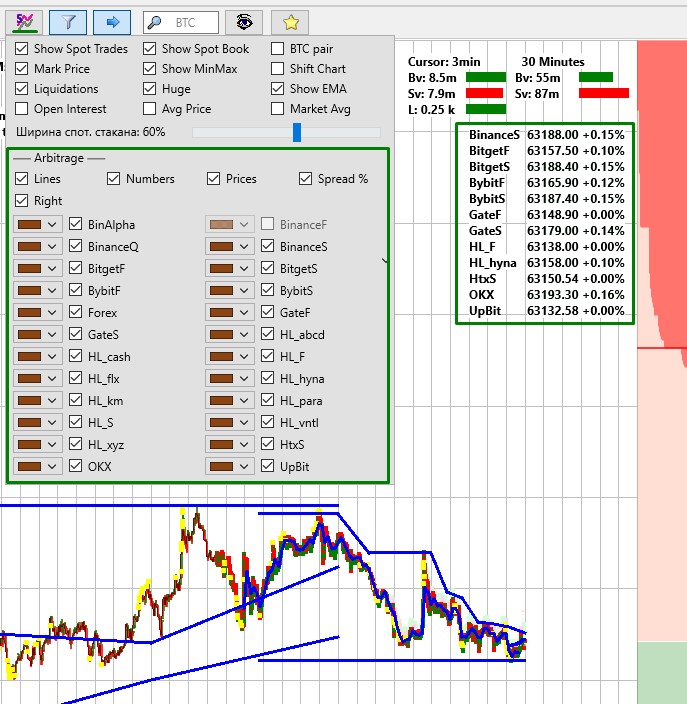
Current prices from other exchanges displayed as text on the chart;
-
Short lines showing the history of the last 10 prices;
-
The ability to use arbitrage data in automated trading through formulas in filters.
When using this module, you can specify formulas for price arbitrage in the CustomEMA and SellByCustomEMA parameters of the strategy settings.
Arb(exchange) > N%
Arb(exchange) < -N%
You can also use the following format: Arb(*) > N% - this means that the price on at least one exchange deviates by more than N%.
Formulas can be written in a row using the conditions AND, OR. For example: Arb(BinAlpha)>1% AND Arb(BinanceF)>1%
The following exchange names are currently available for price arbitrage formulas:
BinAlpha, BinanceF, BinanceQ, BinanceS, BitgetF, BitgetS, BybitF, BybitS, Forex, GateF, GateS, HL_F, HL_hyna, HL_mkts, HL_para, HL_S, HL_xyz, HtxS, OkxF, OkxS, UpBit
* where BinAlpha is Binance Alpha exchange, the exchange with the letter S at the end is spot, the exchange with the letter F at the end is futures, the exchange with the letter Q at the end is quarterly futures, HL_ is Hyperliquid exchange.
⚠️ Important! We do not guarantee a permanent list of price data sources or their uninterrupted availability. This is especially relevant for the Forex market. The list of sources may change in the future, and unreliable sources may be removed.
⚠️ Important! For automated trading, we recommend using strategies with a whitelist and avoiding Arb(*) formulas, instead specifying the exact exchanges you want to monitor. The reason is that different tokens with the same name may be listed on different exchanges, which can lead to false detections if you do not restrict the whitelist and exchange list when creating a strategy.
For example, with the formula Arb(*) > 10%, at the time the strategy is created there may be only one PEPE token traded across all exchanges, making detections accurate. Later, for example, Binance Alpha may list PePe — a different token with the same name but a significantly different price. To avoid false triggers, we recommend configuring your strategy in advance by specifying a whitelist and the list of exchanges where the required assets are traded.
Important Notes
-
Prices are updated every 250 ms if the price on the server has changed. If the price has not changed (for example, due to a lack of trades) or if there are issues with the exchange, websocket, or market, no update occurs. In this case, the label on the chart disappears after 1 minute of inactivity. In automated trading, you can use the timestamp of the last actual price update (“how long ago”) to determine when the data was last refreshed;
-
The terminal receives prices only for tickers available within it. For example, crypto exchanges do not receive Forex or TradFi prices. HL (xyz) stock terminals receive Forex and TradFi prices from BB and Binance;
-
Based on this, automated trading can detect price divergence, but it cannot guarantee that prices are not diverging. A deviation may have occurred while data from one of the exchanges was temporarily unavailable.
In this example, the BTC market is used in the Binance Futures terminal.
-
Lines is a check mark for displaying price lines from other exchanges on the chart. If the check mark is unchecked, the lines are not shown. The lines are drawn over the last 10 prices so as not to overload the overall chart.
-
Numbers is a check mark for displaying the entire data block of the arbitrage prices module. If the check mark is unchecked, then data on exchanges, prices, and percentages are not shown on the chart.
-
Prices is a check mark for displaying arbitrage prices in $ on different exchanges. If the check mark is unchecked, the column with prices in $ is not displayed.
-
Spread % is a check mark for displaying arbitrage prices in % of the price discrepancy with the current exchange. If the check mark is unchecked, the column with % is not shown.
-
Right - a check mark to display the entire data block of the arbitrage price module on the right side of the chart, if the check mark is unchecked, then on the left.
Prices on Moonbot terminals that do not use USD pairs are converted at the exchange rate of the base currency.
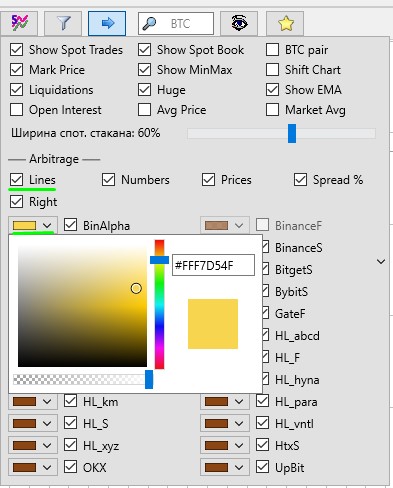
In the settings to the left of the exchange name, you can select the color of its price line using the color menu. This setting is relevant when the Line is checked and allows you to quickly navigate the chart on which exchange prices are higher or lower than the prices of the current exchange.
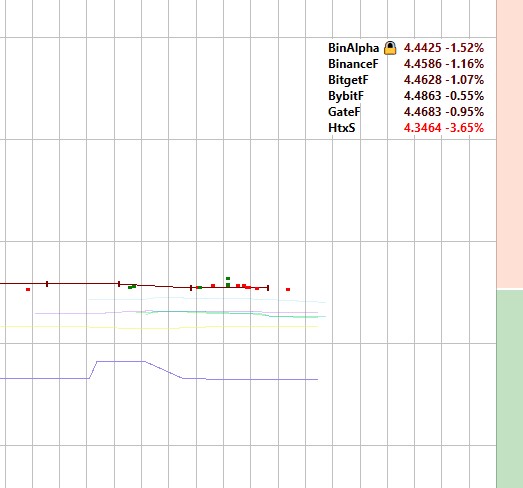
The color of the display of prices in $ and % varies gradiently, the more negative the numbers, the more red they are, and the more positive the numbers, the more green they are.
Prices from exchanges where deposits or withdrawals are closed are marked with a padlock to the right of the exchange name and such prices are not included in the "Arb" formulas for the CustomEMA and SellByCustomEMA parameters.
Important! The arbitration service may not immediately find out that the deposit or withdrawal of funds is closed on the exchange and install the appropriate lock, it depends on the API of the specific exchange. Delays when exchanges enter flags blocking the input or withdrawal of funds in the API can be within a minute.