The features of the "Moon News" module are now available free of charge to all PRO users, starting with version 7.70 of the Moonbot terminal.
The "Moon News" module is used for manual and automated trading when news items are received by the Moonbot terminal.
News feeds for the "Moon News" module are received on our server from numerous sources, analysed using AI, and the relevant coins and tags are identified before being sent to the terminals of users who have subscribed to the service.
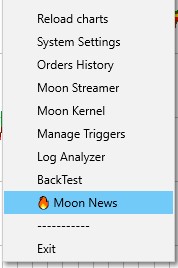
You can open the Moon News window in the terminal via Menu -> Moon News.
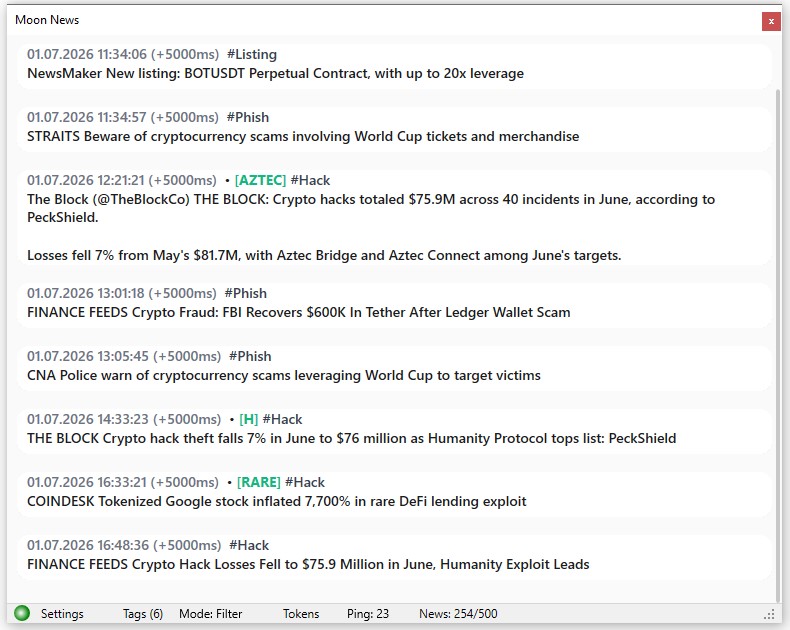
In this window, news items are displayed as a vertical feed, with the latest news appearing at the bottom.
You can scroll up or down through the news in the Moon News window using the mouse wheel.
The news item is formatted as follows:
-
First line: Date, Time, Processing delay in ms, Coin name, tag
-
Second line: A brief description of the news item itself
For example:
01.07.2026 11:34:06 (+2500ms) [BOT] #Listing
NewsMaker New listing: BOTUSDT perpetual contract with up to 20x leverage
Clicking on the coin’s name in the [BOT] news item will open its chart in the main window of your current Moonbot terminal.
Please note!
If you have several copies of Moonbot PRO terminals running on your computer, each connected to different exchanges, and a hotkey is set in the "Open coin in all bots" field under Settings -> Hotkeys on all of them, pressing that hotkey will open that coin on the other terminals as well.
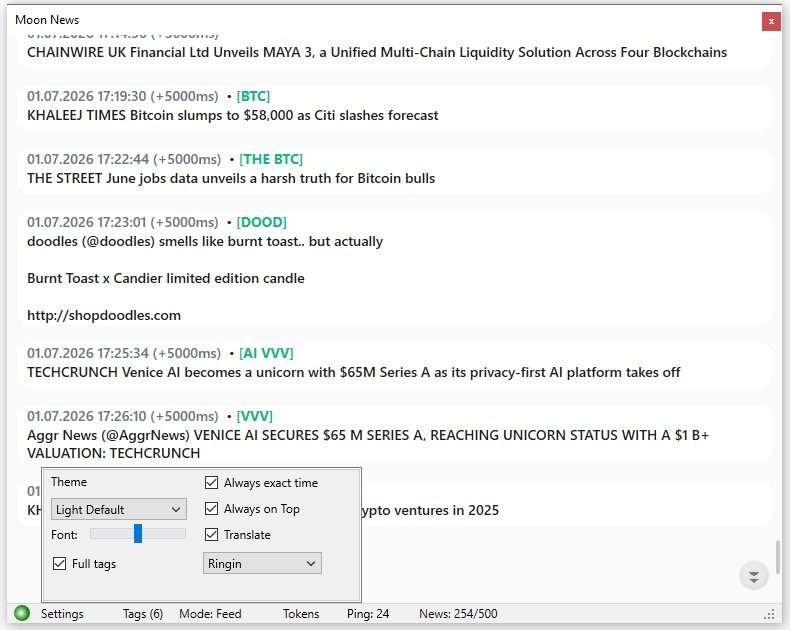
At the bottom of Moon News, you’ll find the following settings:
-
Settings
-
Theme - select a theme in the Moon News window. The following light and dark themes are available: Light Paper, Light Default, Light Classic, Light Quartz, Light Mist, Light Sand, Dark Carbon, Dark Navy, Dark Slate
-
Font: - the 5-position slider for adjusting the font size
-
Full tags - the tick box to select how news items are displayed based on tags:
-
if ticked, all news tags will be shown on the card
-
if unticked, only the selected filter tags will be shown (the Moon News window will be empty if there are no news items with the selected tags)
-
Always exact time - the tick box to select the time format for displaying news:
-
if ticked, the exact date and time will be shown to the left of the news item (e.g. 01.07.2026 18:34:24 (+1125ms) [SOL] ...))
-
if the tick box is not ticked, the time in seconds, minutes or hours that has elapsed since the news item appeared in the news feed will be shown to the left of the news item (e.g., 15 secs [BTC] ..., 24 mins [ETH] ..., 2 hours [HYPE] ...)
-
Always on Top - if this box is ticked, the Moon News window will run in "Always on Top" mode
-
Translate - the tick box for selecting news translation:
-
if this box is ticked, news items are initially displayed in English and are converted to Russian text after being translated on the server..
-
if the box is not ticked, news items are displayed in English and are not translated.
-
Sound selection menu - used to disable sound notifications or to set them when news arrives:
-
Sound: none - no sound
-
Alarm, Babytoy, Bark, Cork, Error, Hallo, PFIFF and others – select any audio alert available in the terminal.
-
Tags - the menu for selecting predefined tags. The following tags are currently available: #airdrop, #announcement, #api, #binance, #bitget, #bybit, #crypto, #delisting, #depositswithdrawals, #earnings, #elonmusk, #exchange, #exchange_upbit, #hack, #kucoin, #listing, #maintenance, #nasdaq, #okx, #phish, #promotion, #sec, #stocks, #tokenmigration, #tradingupdate, #trump, #upcoming.
You cannot add your own tags; they are hard-coded and are used in the analysis of news items when processed by AI.
If any tags are selected, the number of selected tags is shown in brackets to the right of ‘Tags’, for example, "Tags (6)" if six tags have been selected from the list.
-
Режим: - the switch to change the news feed display mode:
-
Tokens - clicking this opens a field for entering tokens, separated by spaces, to filter the news displayed in the feed. If the field is empty, news for all tokens will be displayed.
-
Ping: - ping in milliseconds.
-
News: - the number of the latest news items loaded into the Moon News window out of a possible 500 entries.
For example: News: 253 / 500 means that 253 of the latest news items out of a possible 500 entries are currently loaded in the Moon News window.
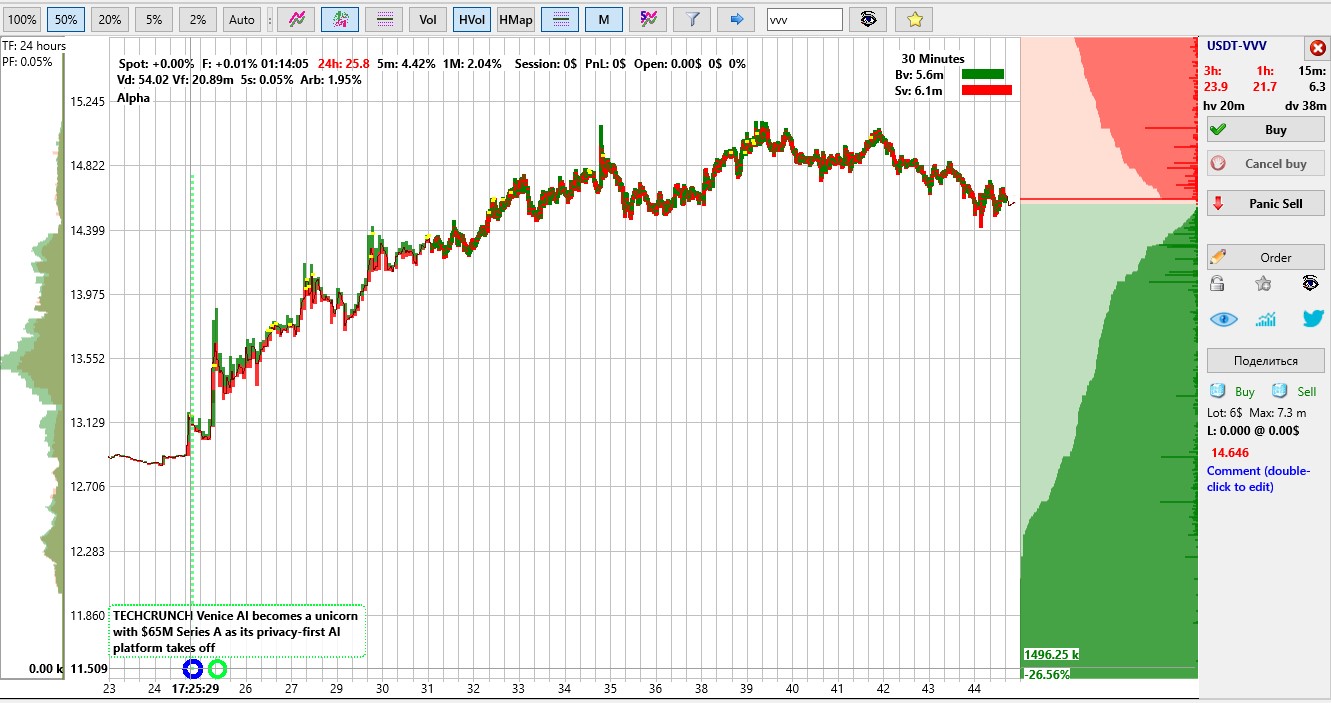
When a news item arrives in the Moon News feed, it is marked with a special indicator on the coin’s chart, and a news banner appears on the chart for 8 seconds. After that, only the news indicator remains on the chart. If you wish to view the news item in the banner on the chart again, hold down the CTRL key and move the cursor over the news indicator.
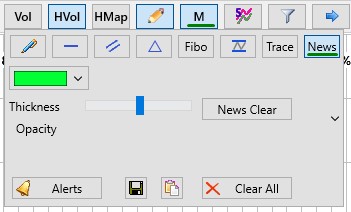
You can customise the graphical display of news labels on the coin chart via the "Pencil" button menu -> "News" button
When trading manually, news tags and alerts allow you to quickly understand the reason behind a coin’s rise or fall and immediately enter the trade with confidence.
When using automated trading, special trigger keys are activated when news is released, allowing you to launch strategies based on these triggers:
In other words, in the strategy settings on the Triggers Master / Slave tab, you can set TriggerByKey=201 or TriggerByKey=202 and specify the time in seconds in the TriggerSeconds parameter. In addition to these settings, strategies also allow you to configure additional filters and formulas (price increases, volume increases, and so on) to confirm that volatility has emerged on the coin following the news.
In addition, the Telegram strategy can receive signals from the MoonNews module and carry out various actions in accordance with its settings (check additional filters, place a limit order or a pending order, buy at market price, and so on).
In this case, you need to create a Telegram strategy:
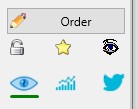
Additionally, the “Moon News” module includes the “Coin Card” functionality (accessible via the Blue Eye button).
The “Coin card” (Blue eye) button, when clicked with the left mouse button, opens a window in which, by connecting your own AI source, you can obtain a brief analysis of the coin according to your configured prompt. This information will additionally help you make the right trading decision after detecting a coin.
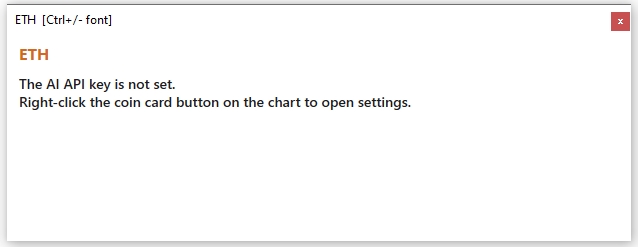
If the AI API key is not specified, the coin card will be empty and will indicate that you need to right‑click the card button on the chart to open a window with settings for selecting the AI API key source. In the сoin card, you can increase or decrease the font size using Ctrl + / -.
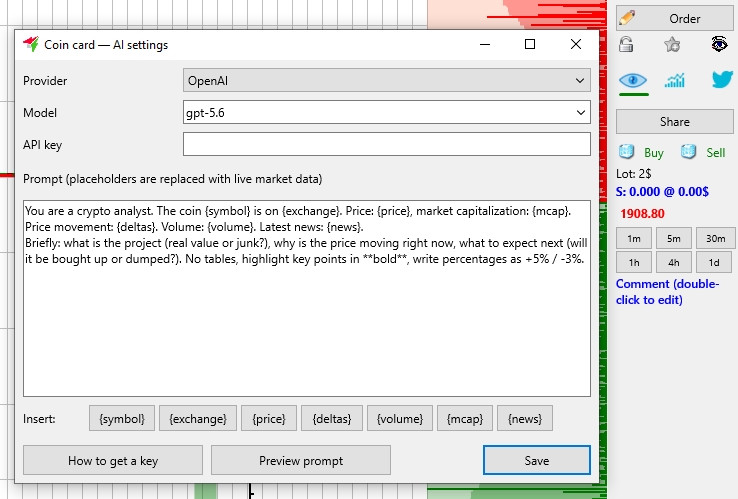
When you right‑click the "Coin card" ("Blue Eye") button, the "Coin card - AI settings" window will open, containing settings where you can select the AI developer, the AI model, insert the AI API key, and define your prompt for the format of the coin analytics output.
-
Provider - the menu with the choice of the AI provider
-
OpenAI
-
Anthropic
-
Google Gemini
-
xAI Grok
-
DeepSeek
-
Perplexity
-
OpenRouter
-
Model - the menu with the option to select an AI model corresponding to its provider.
-
for OpenAI
gpt-5.6
gpt-5.6-terra
gpt-5.6-luna
-
for Anthropic
claude-sonnet-5
claude-opus-4-8
claude-haiku-4-5
-
for Google Gemini
gemini-3.5-flash
gemini-3.1-flash-lite
gemini-2.5-pro
-
for xAI Grok
grok-4.5
grok-4.3
grok-4.20-reasoning
-
for DeepSeek
deepseek-v4-flash
deepseek-v4-pro
-
for Perplexity
sonar sonar-pro
sonar-deep-research
sonar-reasoning-pro
-
for OpenRouter
openrouter/auto
~openai/gpt-latest
anthropic/claude-sonnet-5
-
API key - the field for entering the API key from the AI model.
-
Prompt (placeholders are replaced with live market data) - the field for entering the template of your product
Example:
You are a crypto analyst. Coin {symbol} on {exchange}. Price {price}, market cap {mcap}. Price action: {deltas}. Volume: {volume}. Recent news: {news}.
Briefly: what is this project (real value or trash?), why is the price moving right now, and what to expect next (will it be bought back or dumped?). No tables, highlight key points with **bold**, write percentages as +5% / -3%.
-
Insert - the list of placeholders that can be inserted into the prompt text.
-
{symbol} - Coin ticker (e.g., BTC)
-
{exchange} - Exchange name
-
{price} - Current price
-
{deltas} - Price ranges over 1m/5m/15m/30m/1h/3h/24h (%) + 1h move with direction
-
{volume} - Current 1-min volume мы its average (anomaly coefficient)
-
{mcap} - Market cap in USD
-
{news} - Up to 5 recent news from the feed about this coin, with age
-
How to get a key - the button with instructions for obtaining an AI API key
using OpenAI as an example.
Sign in at platform.openai.com
Settings -> API keys -> Create new secret key.
Requires prepaid balance (Billing).
The key is stored only on this machine and never leaves it with a shared config.
-
Preview prompt - the button for previewing the prompt operation
You are a crypto analyst. Coin ETH on OKX Futures. Price 1905.95, market cap n/a. Price action: price range: 1m 0.04%, 5m 0.07%, 15m 0.09%, 30m 0.15%, 1h 0.28%, 3h 0.41%, 24h 2.47%; 1h move: 1906.85 -> 1905.95 (-0.05%). Volume: current 1-min volume is x0.09 of average. Recent news: [11 min ago] RTRS VS TRUST files S-1 registration statement with U.S. SEC; launches 3X gold, silver, bitcoin, ether, crude oil, and natural gas ETFs - SEC filing
[88 min ago] COINBASE Coinbase: Ethereum Validator Performance Report Q2 2026
[204 min ago] DECRYPT Ethereum Developers Target Privacy Changes in Next Major Upgrade
[226 min ago] CoinDesk (@CoinDesk) CoinDesk's "Public Keys" episode from the NYSE, hosted by Jenn Sanasie, features discussions on blockchain and crypto markets. Citizens Bank analyst Devin Ryan discusses Securitize's 26% post-earnings selloff, maintaining a $15 price target despite the decline. Pantera Capital's...
[298 min ago] Ethereum Foundation (@ethereumfndn) Ethereum Foundation announces an Ethereum Builders Live stream tomorrow at 4pm UTC featuring @jchaskin22 and @TokenBrice, founder of @PharosWatch. The discussion will explore what makes a stablecoin trustless, walk through Pharos' risk dashboard, and discuss stabl...
Briefly: what is this project (real value or trash?), why is the price moving right now, and what to expect next (will it be bought back or dumped?). No tables, highlight key points with **bold**, write percentages as +5% / -3%.
-
Save - the button to save the settings.