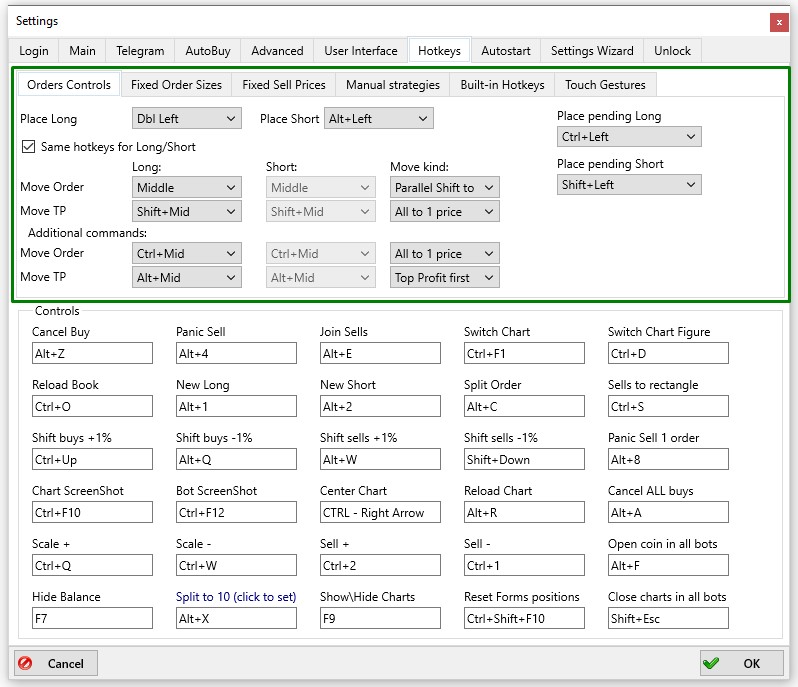
At the top of the Settings -> Hotkeys tab, there is a section containing additional tabs: Orders Controls, Fixed Order Sizes, Fixed Sell Prices, Manual Strategies, Built-in Hotkeys and Touch Gestures.
Orders Controls
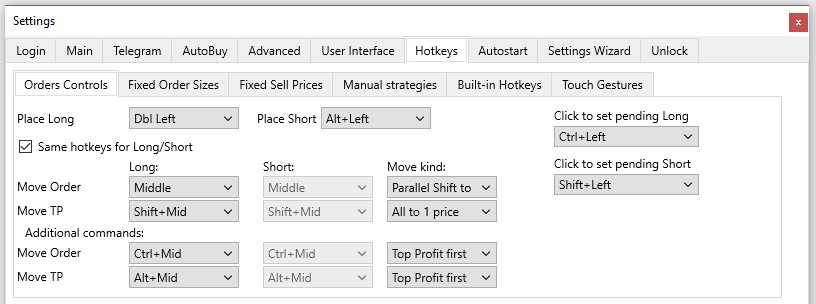
On the Orders Controls tab, you can configure keyboard shortcuts and mouse button combinations for placing orders and moving them within the order book.
Place Long: select the key and click combination for placing a limit order to buy
Place Short: select the key and click combination for placing a limit order to sell
Click to set pending Long: select the key and click combination for placing a pending order to buy
Click to set pending Short: select a combination of buttons and clicks to place a pending short order
Same hotkeys for Long/Short: if this box is ticked, the combinations of buttons and clicks for managing order and take-profit movements will be the same for both long and short positions. If the box is not ticked, you can select different combinations of buttons and clicks to manage short orders and take-profit levels.
Fixed Order Sizes Tab
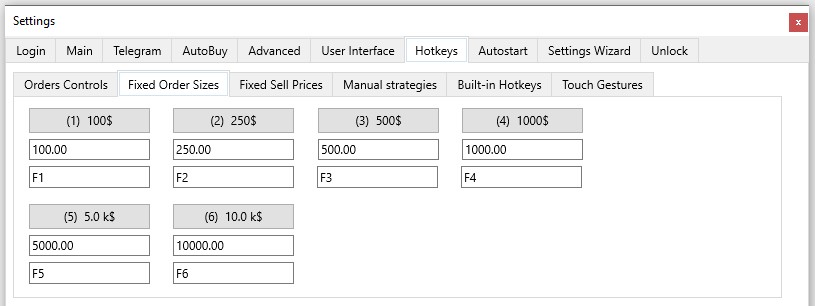
On the Fixed Order Sizes tab, you can configure settings for each of the fixed Buy buttons: the order size (in quote currency) and the hotkey combination to select the desired fixed Buy button.
Fixed Sell Prices Tab
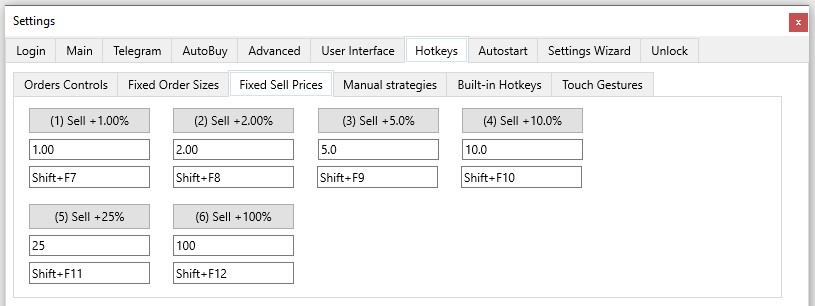
On the Fixed Sell Prices tab, you can configure settings for each of the fixed Sell buttons: the Sell Price (Take Profit level) and the hotkey combination to select the desired fixed Sell button.
You can also change the size of Buy orders or the Sell Price level by double-clicking the corresponding fixed button in the interface.
By default, hotkeys for selecting fixed buttons are already assigned. You can use the suggested values or set your own.
Manual strategies Tab
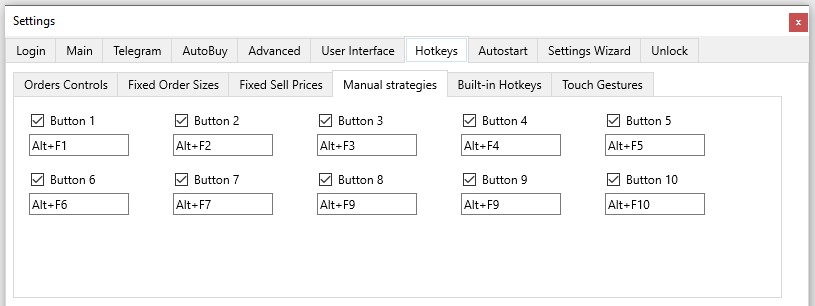
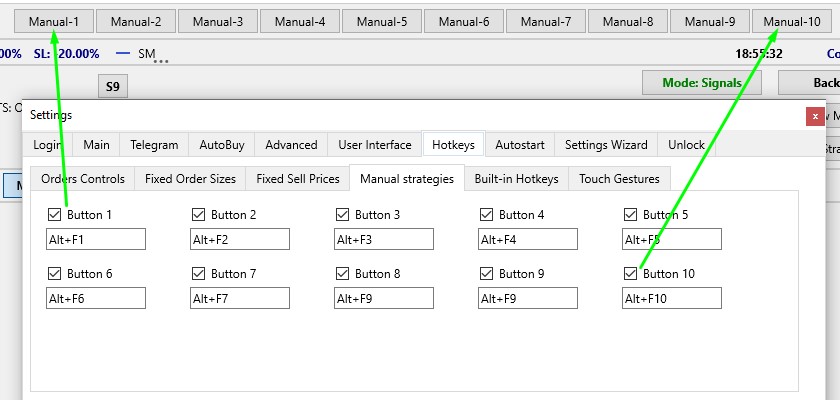
On the Manual strategies tab, you can enable buttons for quickly selecting manual strategies and assign hotkeys for each of these buttons. When you check the box next to Button, additional buttons for Manual strategies will appear in the top right of the main terminal window.
Initially, these buttons are empty, not assigned to any Manual strategy. If you right-click one of the buttons, a list of available Manual strategies will appear. Select the desired one — it will be linked to that button. This way, you can prepare several buttons with different Manual strategies and quickly switch between them during trading, selecting the most appropriate one for the current market situation.
Built-in Hotkeys Tab
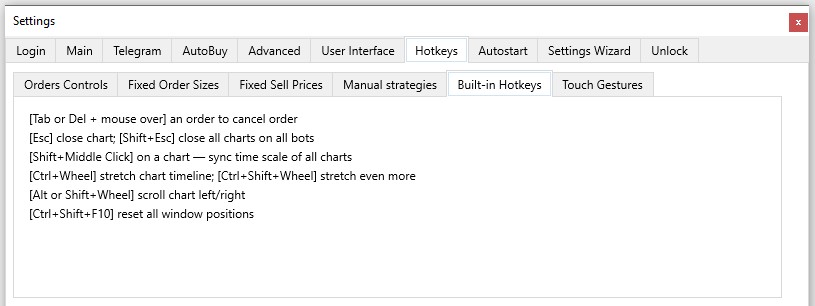
The Built-in Hotkeys tab lists the key combinations and mouse clicks used in various settings.
[Tab or Del + mouse over] an order to cancel order
[Esc] close chart; [Shift+Esc] close all charts on all bots
[Shift+Middle Click] on a chart - sync time scale of all charts
[Ctrl+Wheel] stretch chart timeline; [Ctrl+Shift+Wheel] stretch even more - up to 3 seconds (50 ms per cell)
[Alt or Shift+Wheel] scroll chart left/right
[Ctrl+Shift+F10] reset all window positions
Touch Gestures Tab
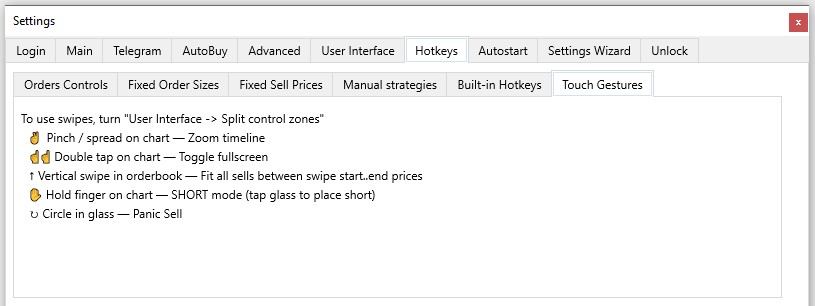
The Touch Gestures tab lists a list of gesture combinations on touchpad screens that support gestures for control. Before using this functionality, check the "Split control zones" box on the Settings → User Interface tab.
Pinch / spread on chart - Zoom timeline
Double tap on chart - Toggle fullscreen
Vertical swipe in orderbook - Fit all sells between swipe start…end prices
Hold finger on chart - SHORT mode (tap glass to place short)
Circle in glass - Panic Sell